How to Submit An Invoice - Option 1
(Enter Description and Pricing Manually)
Â
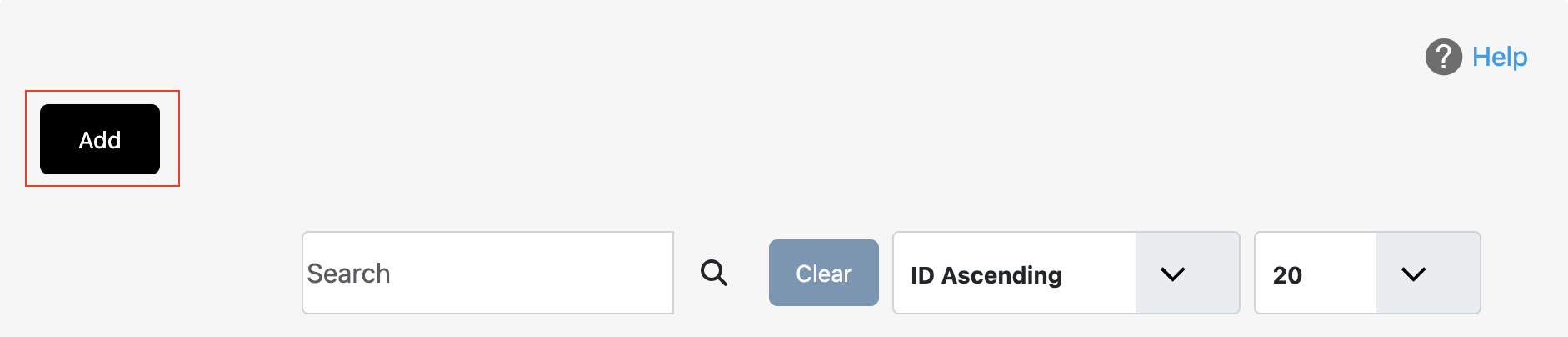
- Start by clicking on the Add button to create an invoice.Â

- Start by setting up the Due Date for payment on the invoice.
- Next, if you are sending the invoice to existing customer that has made a payment in this portal you can click the Customer drop down, which will populate the Customer Name and Email . Otherwise, if it's a new customer you can enter the Customer Name and Email directly into the text fields.Â

- Â Next are the instructions on how to enter the Product/Service to the invoice directly into the invoice. Start by clicking the X on the row with the drop down.Â

- Proceed by typing the Description of your product/service, Quantity (optional), and your Price. The total will display under Amount. If adding more than one product/service click Add Item and repeat step 4.

- Next, enter Tax % (optional), the Total Amount will display the total of all product(s)/service(s) enter into the invoice. To finish click Submit. Note: The customer will receive an email with a PDF that will include the invoice details and a payment button.

How to Submit An Invoice - Option 2
Add Category, Product, and Selecting Product/Service
- Click Categories on the left side menu items under Add Products/Services.

- Click Add to create a new Category.
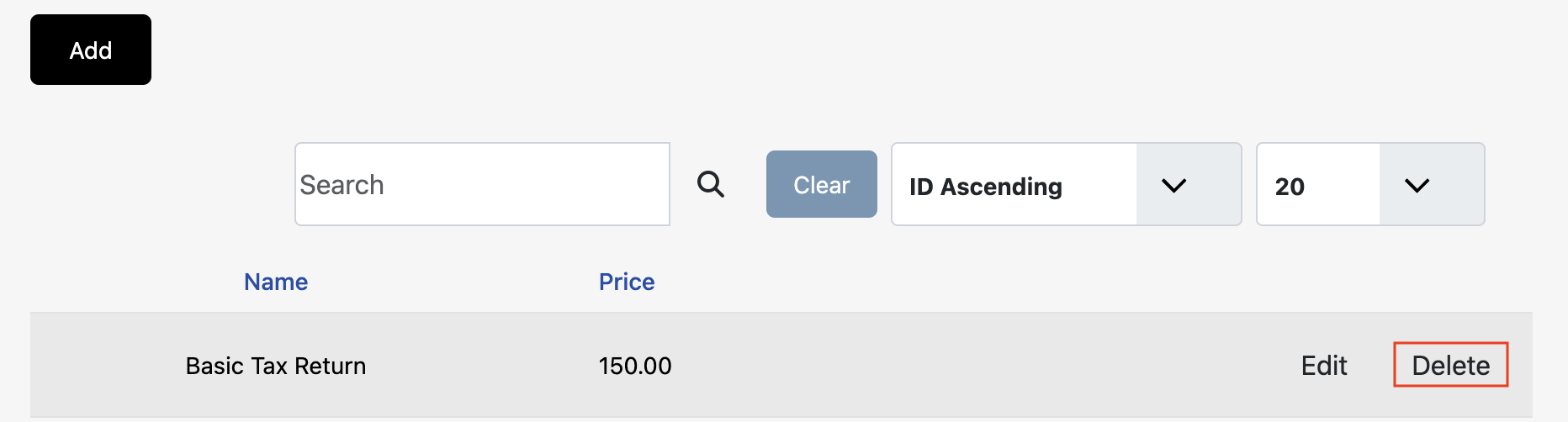
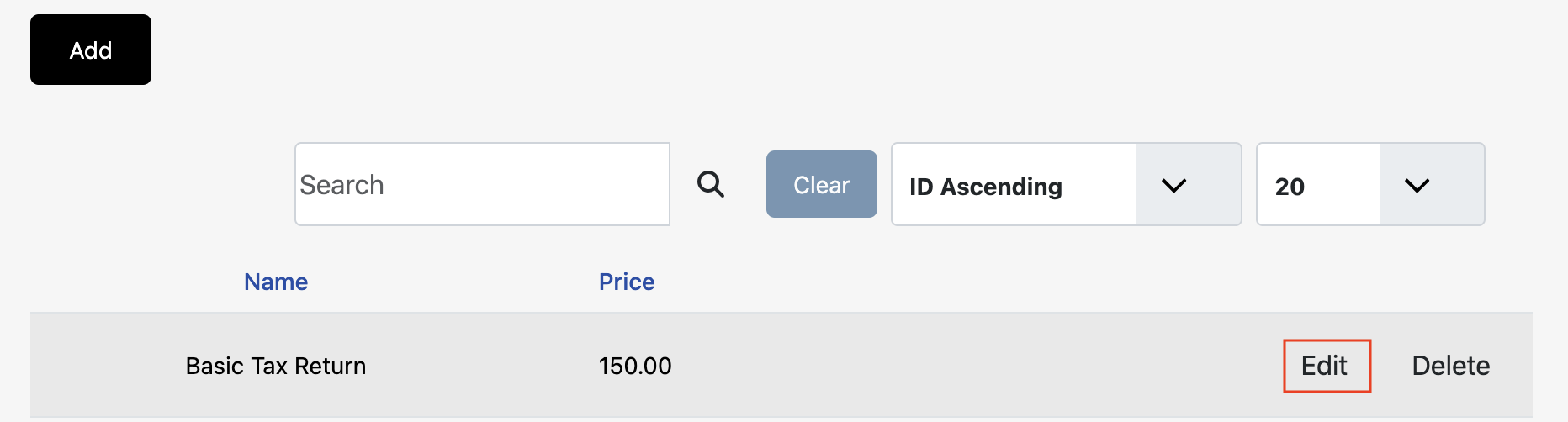
Note: The image below displays a Category that was previously added. On the right side of the item you can click on Edit to make changes, or you can click Delete to remove the Category from your account.Â

- Next, enter the Name of the Category and Description (optional), then click Save.Â

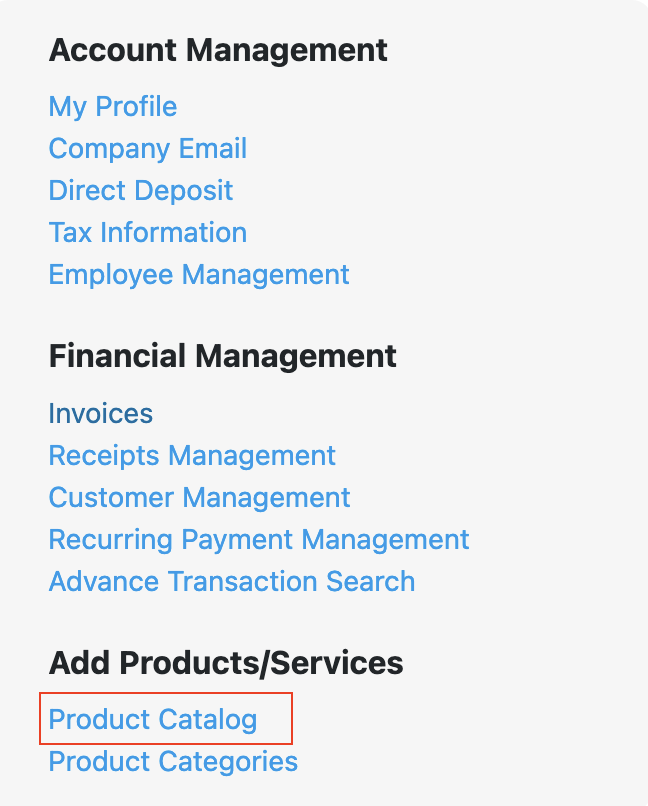
- Proceed to add Product/Service by clicking Add Products/Services on the left side menu.

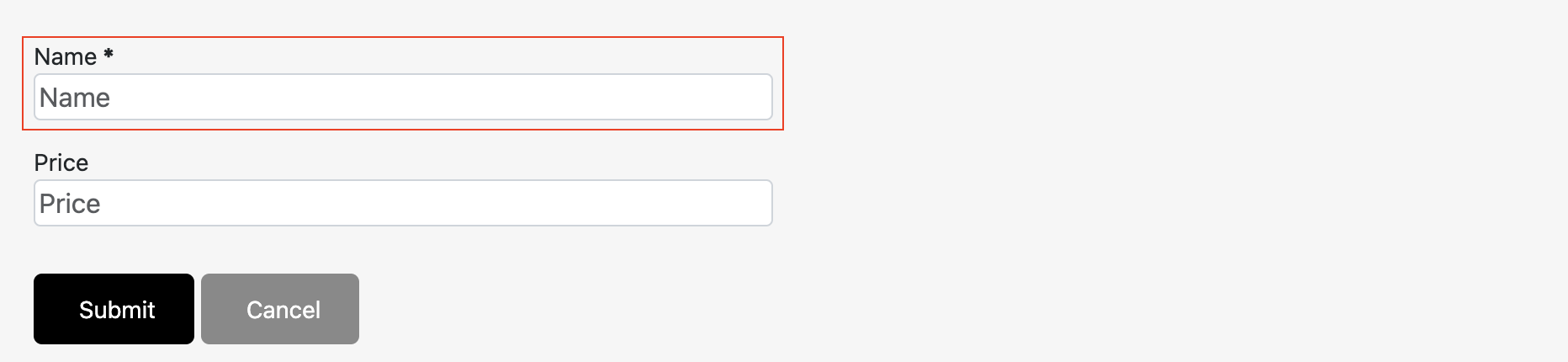
- Next, Add to create a new Product/Service.
Note: The image below displays a Products/Services that was previously added. On the right side of the item you can click on Edit to make changes, or you can click Delete to remove the Product/Service from your account.

- Follow steps 1-6 from instructions above in Option 1. The only difference is that now you will click the XÂ on the row where manual data fields are located. Then click arrow on drop down to select Product/Service, which will populate Price.Â